Share documents
Sharing information is a big part of a product builder's job. Whether you are communicating with other members of your team or outside stakeholders, you often have more than words to share. And you create documents for everything from meeting agendas to product plans. You can share Aha! documents with anyone — so you can drive alignment on your plans and work collaboratively with your team.
Click any of the following links to skip ahead:
Share menu overview
All workspace and personal documents have a Share menu in the upper right corner. Personal documents include one option (Guest) in the share menu. Workspace documents include three options:
Workspace: Set Reviewer access. This is the best place to share your document with internal teams. Define whether those with reviewer access to your workspace can View or Edit your document. You can set default access for all reviewers in your workspace from the Document access section of your workspace settings, but from here you can override default settings for an individual document.
Aha! Knowledge Advanced plan subscribers can set granular permissions to determine which users can view and edit individual documents.
Guest: Generate a shareable link to your document and set default guest access to your document. This is the best place to share with stakeholders you want to collaborate with. Once someone accesses a document you have shared with them from a guest account, their email address will be listed here. You can then grant them View or Edit access individually, so you can control who can make changes to your document.
Webpage: Share a view-only link to a note that will update automatically in its own webpage. This is a great way to share a document to keep people informed of your plans. Anyone with the link will be able to view the document. You cannot share a whiteboard as a webpage.
The data that shows in your shared note is based on the permissions of the person who shares it. For example, if you add an Aha! view to a note and then share it, anyone with access to the note's link will be able to see the data in that view.
Share a document
Anyone can share a personal note or whiteboard that they have created with a shareable link. Owners or Contributors can also share workspace documents — but Viewers and Reviewers cannot share workspace documents.
Share with users in your Aha! account
Other users in your account who have access to your workspace can view workspace documents at any time. If you want to share a specific document with other members of your workspace, you can send them a link to the document. You can update a document's reviewer access from the share modal to View or Edit.
Access the Share menu and select the Workspace tab. Then click Copy link next to Workspace access. Provide the link to whomever you need to share it with. Keep in mind that this link will only work for users in your account who have permission to access your workspace and is not the same link you will use to share with guests.
With the Aha! Knowledge Advanced plan, you can decide exactly who can view or edit a document.
You can also @mention a user in your account. This will add them as a Watcher on the document. Watchers receive notifications when documents change.
Share with guests
A guest is someone who is not a user in your Aha! account. Guests can view or edit your document with a link you provide them. A guest needs an account to view documents, but guest accounts are free.
Share a link
Access the Share menu and select the Guest tab. Then click Generate link. Provide the link to anyone you want to share the document with. You can set default View, View and comment, or Edit access for all guests using the dropdown under Guest access.
You can disable the link whenever you choose. If you disable the link, anyone who has the link but has not yet accepted access to the note or whiteboard will not be able to access it. But anyone who has already accepted the whiteboard will not lose access — they will find it the Shared with me section of their My work page.
Invite with email
To send an invitation to view a document, enter the email address of the person you want to share your document with in the Invite with email field. You can also add an optional message. Click Send invite to send your invitation. The person you invite to view your document will receive an email linking them to the document.
You can change a viewer's permissions to Edit, View and comment, or View access by clicking next to their initials in the People who have access section of the Share menu. You can remove access to your document for any viewer by hovering over their initials and clicking the trash icon that appears.
Share as a webpage
Sharing a note as a webpage is a great way to share information broadly. Anyone with the link will be able to view your note — they will not need a guest account to view it. That is why sharing as a webpage is ideal for sharing information with stakeholders on an ad hoc basis.
You can share a note as a webpage, but you cannot share a whiteboard as a webpage. However, you can share a note that has an embedded whiteboard. The embedded whiteboard will display its content, but viewers will not be able to expand the whiteboard to full view.
Access the Share menu and select the Webpage tab.
Click Manage webpage.
Click the toggle to Enable share as webpage.
Click Copy link.
Share the link with anyone.
Anyone with access to the link will be able to view the document. You can disable the link by clicking the toggle again or by clicking Generate new link. When you generate a new link, the previous link will no longer work.
Click Copy embed code to embed the note in a third-party platform.
Ideas Advanced subscribers can also share a note on a custom page in your ideas portal. This is a great way to create a wiki that your customers can access.
Accept a document
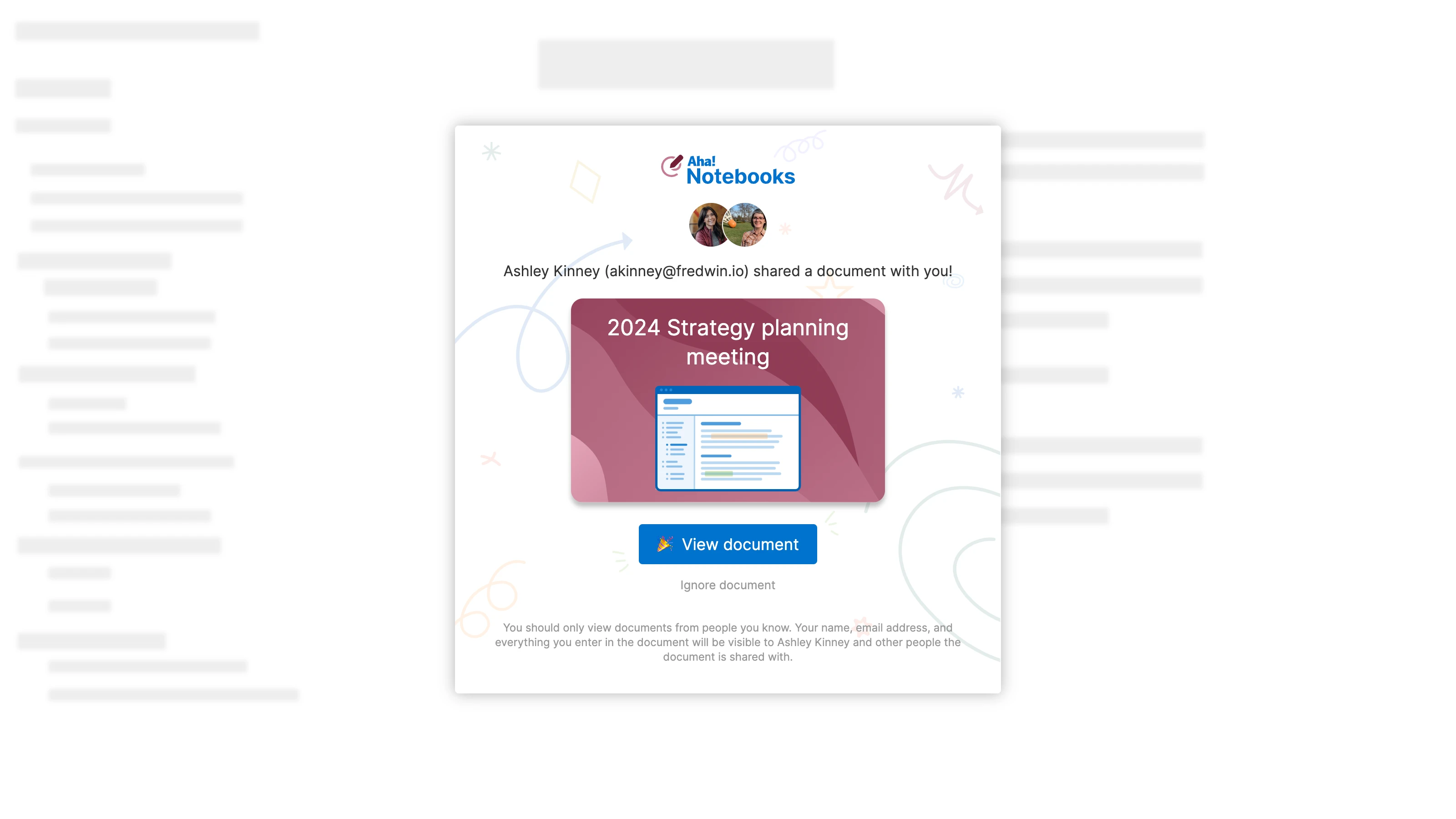
Someone may share a personal document with you by providing you with a link. Likewise, someone from a different Aha! account may provide you with a link to share a document with you. If you are logged into your Aha! account, you will see an option to accept and view the document. Click View document to accept and view it.
If you are not logged into your Aha! account when you click the link, you will see a prompt to sign up for an account. We recommend logging in to your Aha! account first and then accessing the link to avoid creating an additional guest account to view the document.
If you do not have an Aha! account, you can sign up for a guest account from the invitation. Guest accounts are free.