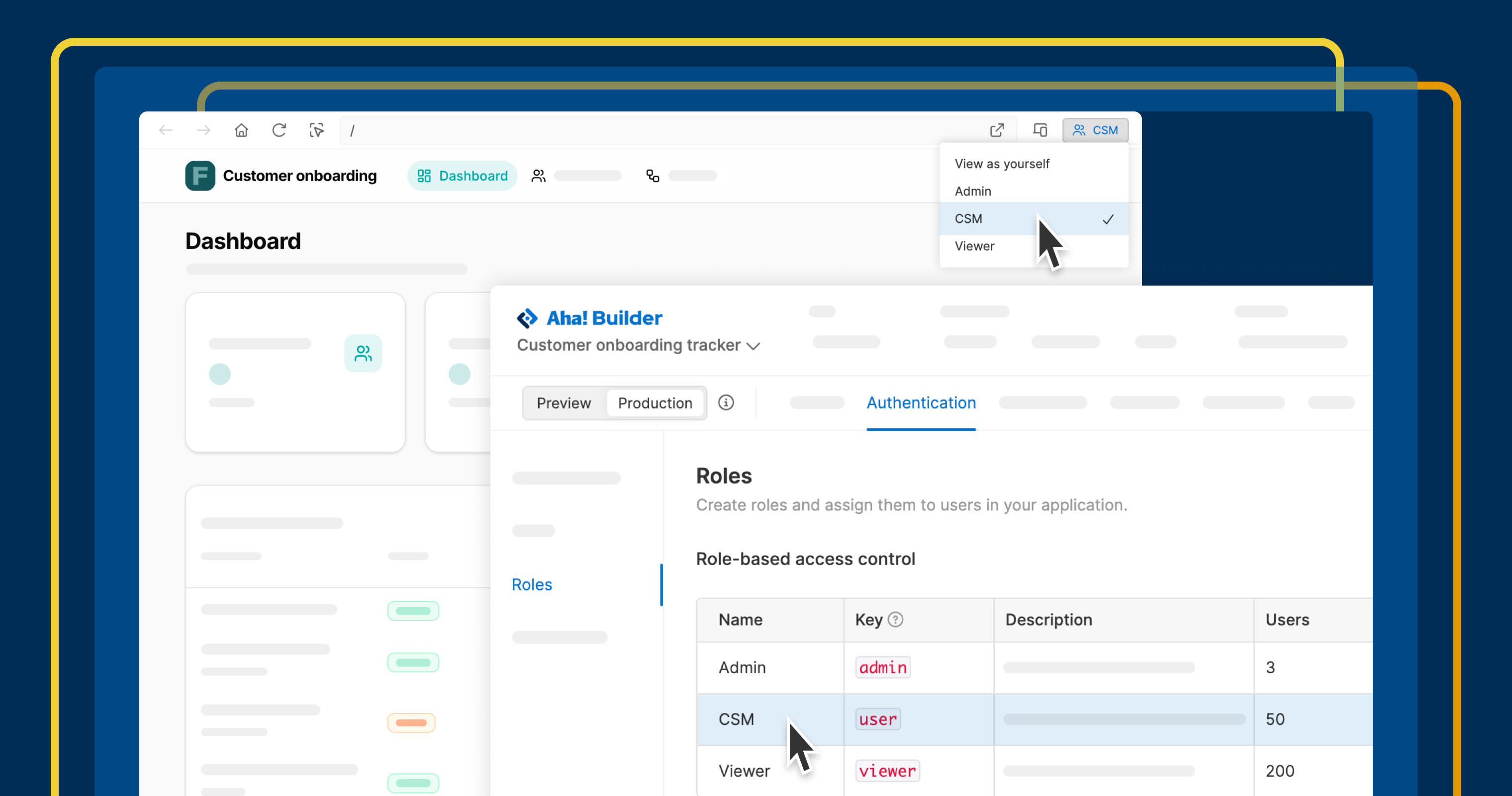
Establish different types of roles and then preview each user experience.
Build AI-coded applications with the right user access


Most business applications need different levels of access. Admins, editors, and viewers should not all see the same information or take the same actions. But adding role-based permissions to every AI-coded application can be complex to set up and hard to maintain over time. Aha! Builder simplifies this.
Aha! Builder now makes it super easy to add user roles and permissions to every application — no custom AI coding required.
Create the right experience for every user
Aha! Builder helps you create proofs of concept and business applications with AI. You can already manage who can access each application with built-in authentication. Today's update makes it easier to manage user roles, verify each experience, and assign the right permissions to keep your applications secure.
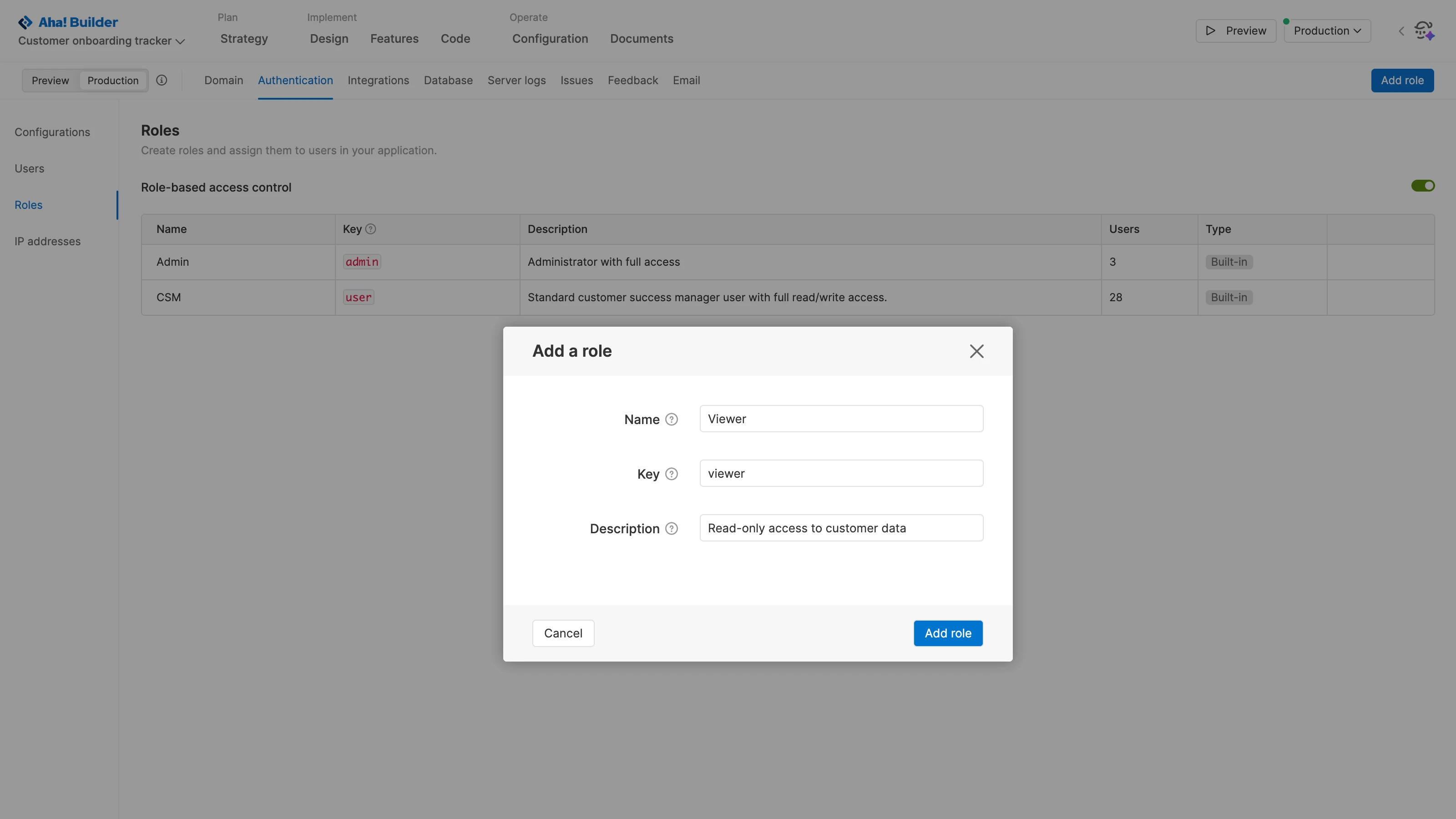
When you create new applications in Aha! Builder, Elle (the AI assistant in Aha! software) automatically configures different roles based on your requirements. Use the new Roles tab in the Authentication section of your application to manage them and add new ones. Then toggle to the Users tab to pre-provision access and manage user details.
Here's what you can do:
Set up role-based permissions: Start with roles generated by Elle and refine them for your application.
Preview each experience: Switch roles in Preview to verify that each role works as expected.
Pre-provision access: Add users with a specific role assigned before they ever log in.
Manage changes centrally: Update roles and user access from one place as your application evolves.
Already have applications in Aha! Builder? Enable role-based access control and ask Elle to apply the updates to take advantage of these new capabilities.
Built-in roles and user access management are available to all Aha! Builder customers. (You must be an Application Owner to set up roles). Start a free trial or join a demo to see how to create and manage enterprise-ready applications with AI.
How to get started
Open an application and go to Configuration Authentication Roles.
Review the roles Elle created, then manually add or edit roles as needed.
Ask Elle to apply role changes to your application.
Go to Configuration Authentication Users to add users, assign roles, and manage invitations or password resets.
Open Preview and switch roles to verify each user experience.
📚 For more details, read the full support article.
This feature is part of a broader set in Aha! Builder designed for enterprise-grade applications. Alongside built-in role and user management, teams also get centralized governance, security and privacy reviews, and databases to support business use cases. To see how it all comes together, watch the recording of our recent Aha! Builder tutorial.
Start a free trial of Aha! Builder
Aha! Builder is the AI coding tool for creating robust prototypes and trusted business applications with AI. Sign up for a free 14-day trial or join a live demo to see why more than 1 million product managers trust our software to build lovable products and be happy doing it. Contact us if you are interested in trying Aha! Builder in your Aha! Roadmaps or Aha! Ideas account to go from idea to delivery.