Use new formatting tools to keep tables clean and consistent.
6 new ways to style tables in the Aha! text editor


Product teams often use tables to share important information — from comparison charts to feature matrices and FAQs. Tables are a great way to structure that information to make it easier for customers and colleagues to absorb. Now, you can create tables that look even more compelling in the Aha! text editor, with new options to quickly style every row, column, and cell to make your documentation a joy to read.
Use new table formatting options in Aha! software to create clear, polished documentation faster.
Style tables the way you want
We continue to enhance the Aha! text editor. Last week, we introduced six new formatting options for images, text, and links. Today's update focuses on tables — so you can make your product documentation even more exceptional.
You could already add tables to any note or description field across Aha! software. You could also use rich formatting options to style the information inside — including font, background colors, text alignment, and more. You now have six new options to add visual appeal to your tables:
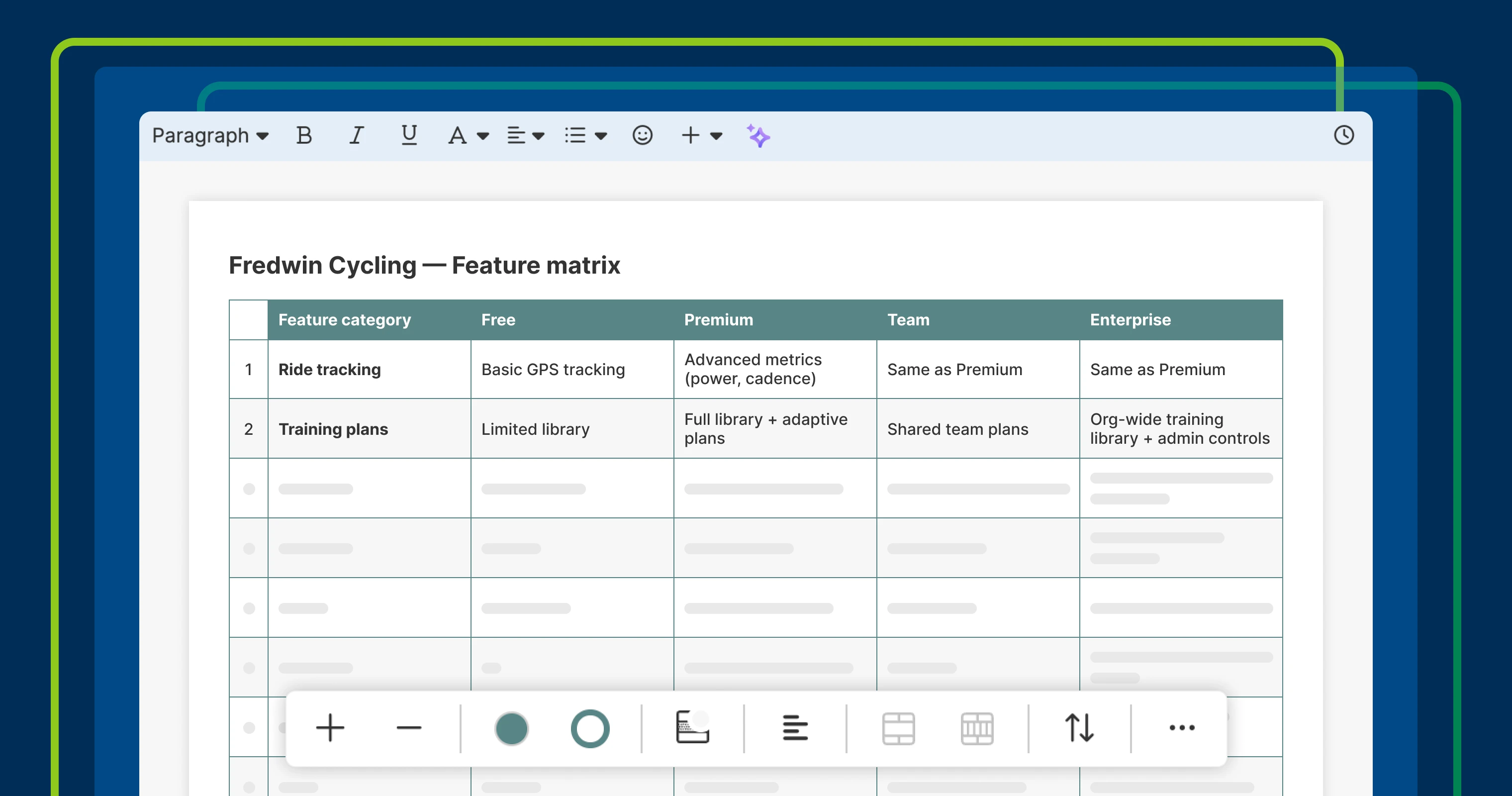
Change or remove table borders for a clean, modern layout.
Add header rows and columns to keep titles visible as you scroll.
Automatically number rows to make tables easier to reference and maintain.
Alternate row colors for better readability.
Sort columns alphabetically or numerically to surface key details.
Instantly apply formatting to new rows and columns for consistency.
Spend less time styling the perfect table and more time working on the actual content.
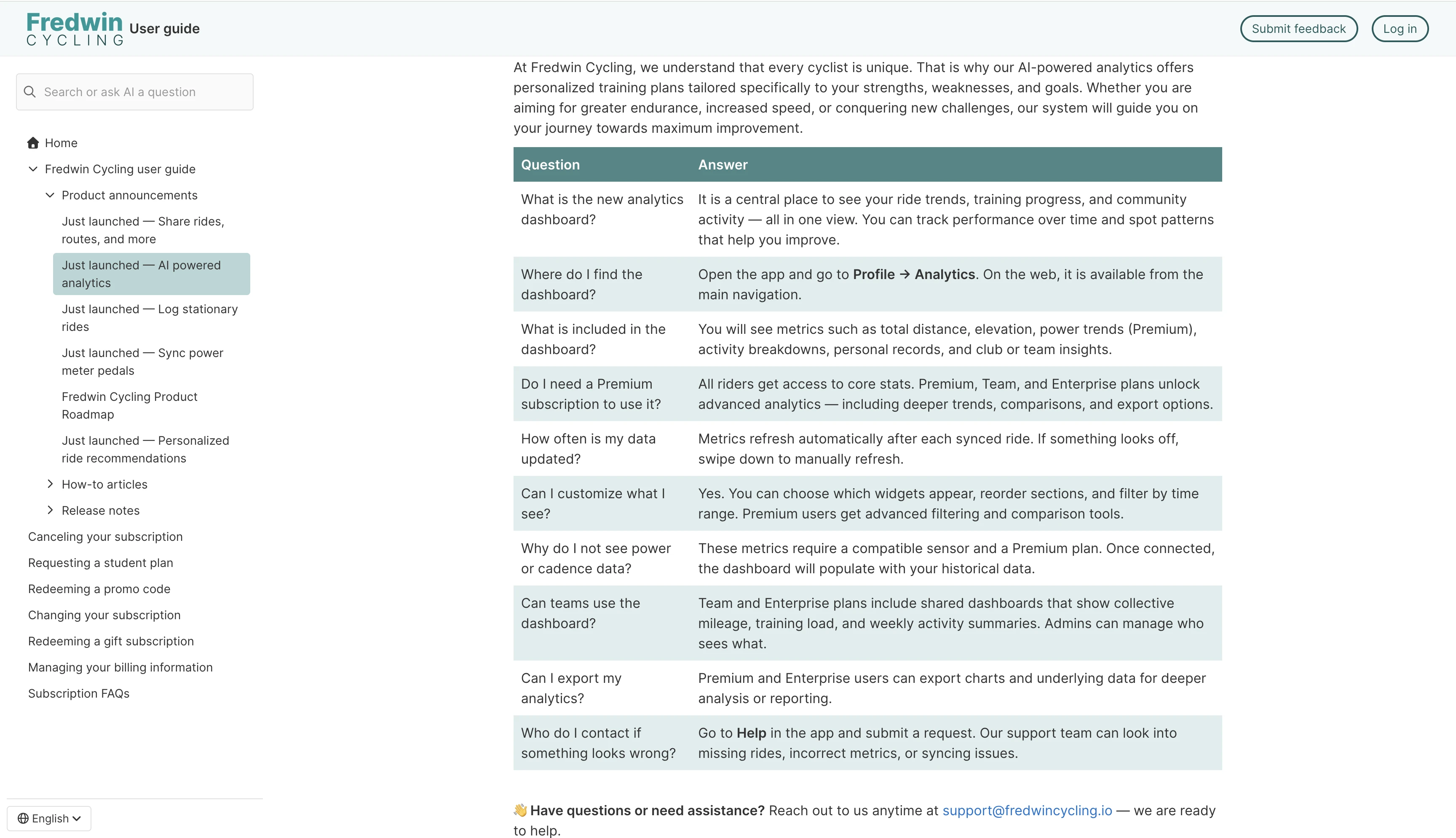
Tables are built into the Aha! text editor, which is included throughout Aha! software. The example above shows an FAQ table in a published knowledge base. (Let us know if you are interested in seeing a demo of Aha! Knowledge Advanced.)
How to get started
Open any record description or note.
Click the + icon in the text editor toolbar, select Table, and highlight the number of rows and columns you need.
Use the table toolbar to adjust border color and apply Table sort options.
Open the More options (...) button to add a Header row, Header column, Numbered rows, or Alternate row color.
📚 For more details, read the full support article.
Create beautiful tables with ease. These enhancements help you communicate clearly — so teammates and customers can scan key details quickly. Try them out in your product documents and knowledge base articles today. Or start with a template (like a decision log or approaches table) to get going faster.
Start a free trial today
The text editor is available to all Aha! customers. Our suite of product development tools works seamlessly together to help teams turn raw concepts into valuable new capabilities — for customers and the business. Set strategy, crowdsource ideas, spark creativity, prioritize features, share roadmaps, manage releases, and plan development. Sign up for a free 30-day trial or join a live demo to see why more than 1 million product builders trust our software to build lovable products and be happy doing it.